Set up CoinTable in 2 minutes
Five steps in Google Sheets on a computer. No signup, no API key to paste, no credit card.
1. Install the add-on
Open CoinTable on the Google Workspace Marketplace, click Install and allow access. CoinTable works only with the spreadsheet you have open.
2. Open CoinTable in your spreadsheet
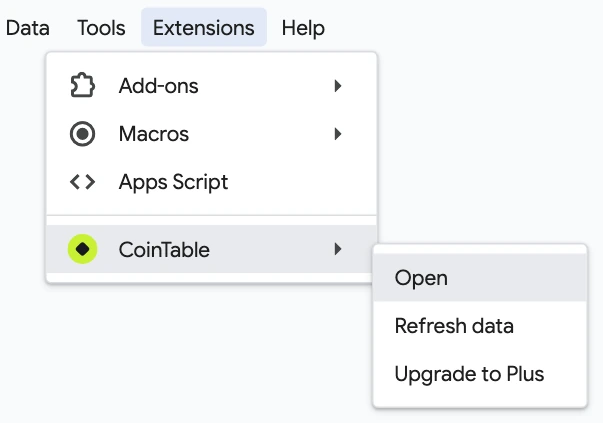
Choose Extensions › CoinTable › Open. The CoinTable panel opens on the right. Do this once in each new spreadsheet; until then, CoinTable formulas in it show #NAME?.
3. Add your first coins
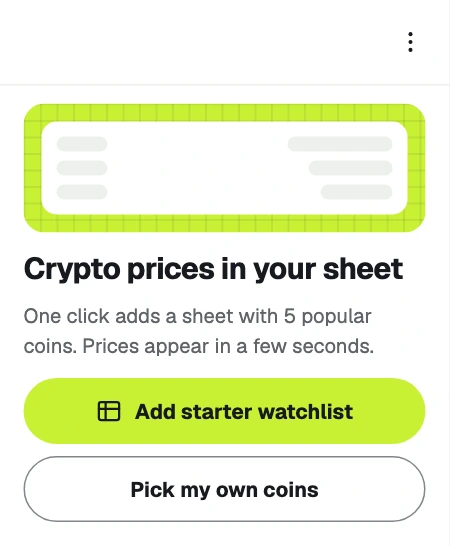
In an empty spreadsheet, click Add starter watchlist: a new sheet with 5 popular coins appears, and its prices fill in within a few seconds. Templates in the panel add a Portfolio tracker or a Market overview the same way.
4. Add any coin to any cell
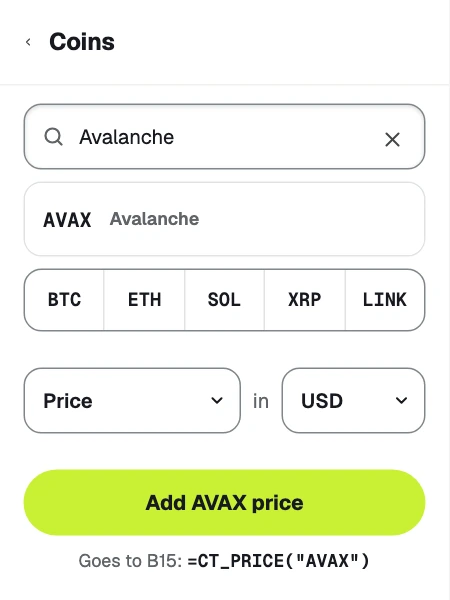
Select a cell, open Coins in the panel, type a coin's name or ticker, choose what to show and the currency, then click Add. The panel writes the formula, such as =CT_PRICE("AVAX"), into that cell. You can also type formulas yourself.
5. Refresh prices
Click Refresh in the panel, or choose Extensions › CoinTable › Refresh data. Refresh updates every CoinTable formula in the file. Free includes 150 updates a month; see what counts as an update.
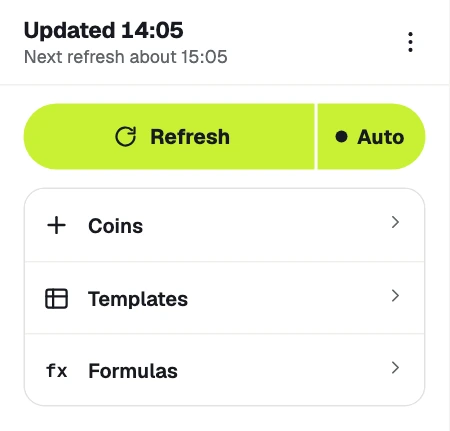
On Plus, prices also refresh each time an editor opens the file. Click Auto to refresh the spreadsheet every hour, even when it's closed. The first time, Google asks once for permission: click Allow in Google… and confirm.
Something doesn't work?
- A cell shows
#NAME?: choose Extensions › CoinTable › Open once in that spreadsheet. - Other errors and questions: see the FAQ or contact us.